
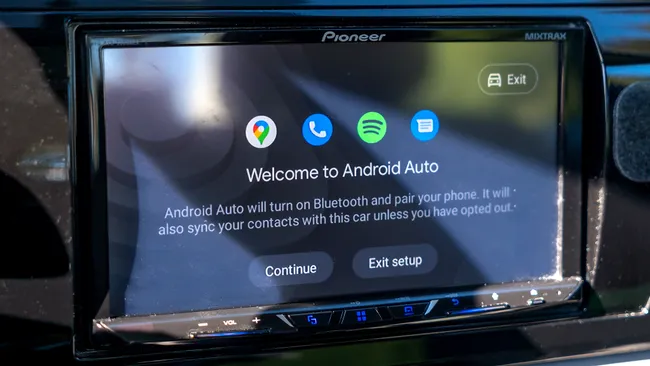
Android Auto is one of those features that feels seamless when it works—but the default setup isn’t always ideal for daily driving. Out of the box, it prioritizes convenience over control, which can lead to annoying surprises like automatic music playback or unnecessary notifications while you’re on the road.
After setting up Android Auto on a new phone, there are a few key settings I always adjust immediately. They take only a minute or two to change, but they make the experience noticeably calmer, safer, and more predictable.
1. Turn off automatic music playback on connection
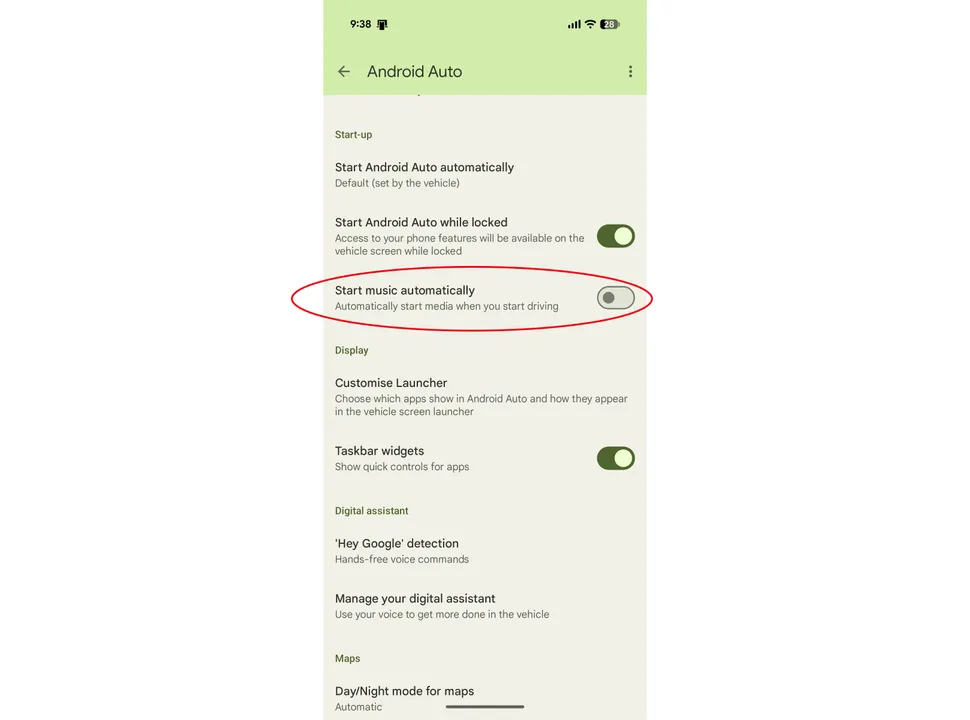
One of the most common frustrations is that music starts playing automatically the moment your phone connects to the car. If your volume was high last time you used it, you can end up with loud, unexpected audio the second the engine starts.
This can be awkward in general, and especially inconvenient if you’re not ready for sound at all.
To fix this, open Android Auto settings on your phone, find the startup or connection options, and disable automatic media playback (often labeled something like “Start music automatically”).
After that, your phone will stay paused when connecting, giving you full control over when audio begins.
2. Reduce or silence notification interruptions
Notifications are helpful on your phone, but in a driving context they become a distraction layer you don’t need.
Android Auto allows messaging and app alerts to appear on your car screen by default, which can break focus quickly.
You can manage this in two ways:
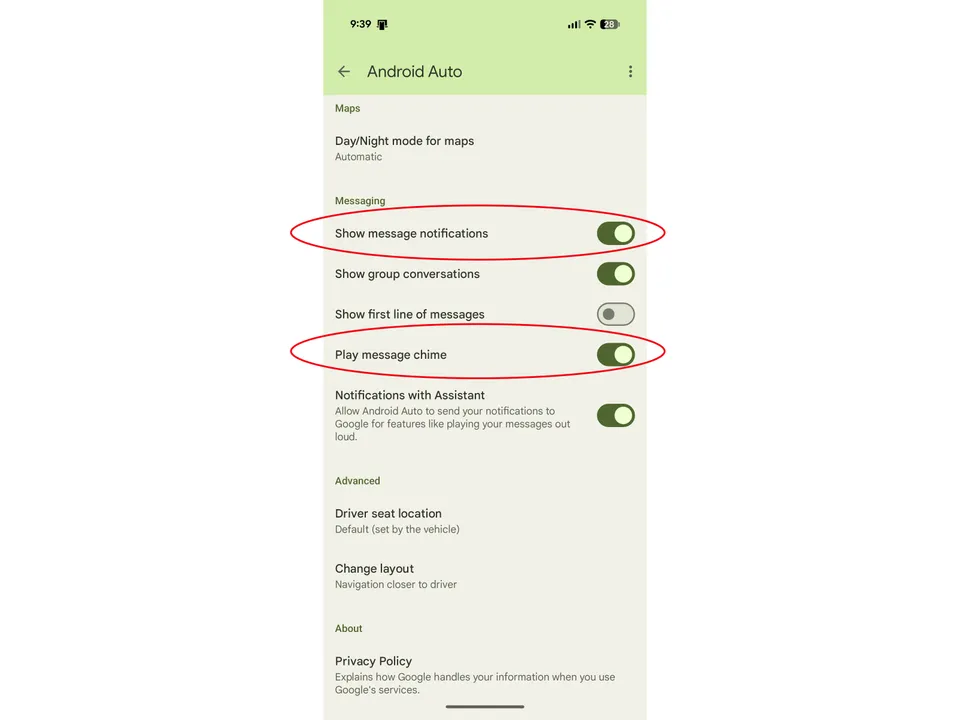
- Turn off message sound alerts so notifications don’t chime while driving
- Disable message pop-ups entirely if you want a cleaner, distraction-free interface
- Or selectively remove apps you don’t want shown in Android Auto
The goal here is simple: only keep what is truly useful while driving—everything else should stay silent.
3. Stop Android Auto from launching automatically every time
Android Auto is designed to launch as soon as it detects your car, but that’s not always what you want. Short trips, radio listening, or battery-saving situations don’t always require it.
There isn’t a perfect universal toggle for this, but one useful workaround is adjusting the “start while locked” behavior. When disabled, Android Auto won’t automatically launch unless you actively unlock or trigger it.
This gives you more control over when the system engages, instead of letting it decide for you every time you connect.
4. Clean up the app drawer inside Android Auto
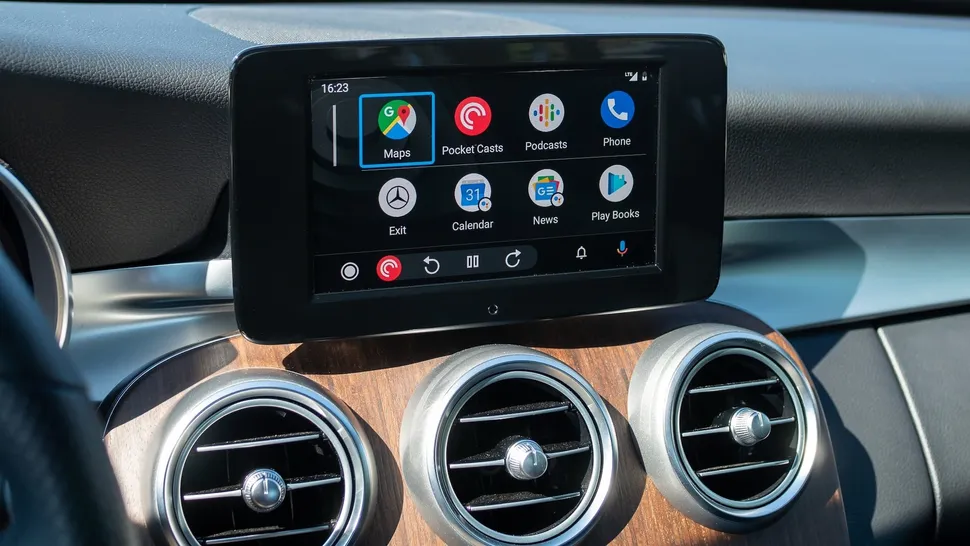
Over time, Android Auto can become cluttered with apps you don’t actually use while driving. Music apps, messaging tools, and media services can all appear by default—even if they’re not relevant to your routine.
Inside Android Auto settings, there’s an option to customize which apps are allowed to show up in the interface.
Go through the list and remove anything unnecessary. Keep only:
- Navigation apps (like maps or traffic tools)
- Core communication tools (calls, essential messaging if needed)
- Music apps you actually use in the car
This makes the interface faster, simpler, and less distracting while driving.
5. Adjust connection behavior for wired vs wireless use
Android Auto supports both wired and wireless connections, but each has different trade-offs.
Wireless is convenient but can use more battery and occasionally create background drain, while wired is more stable and charges your phone at the same time.
In your settings, check how your phone behaves when connecting:
- Prioritize wired connection if you want stability and charging
- Disable wireless auto-connect if you don’t need it every time
- Or switch between modes depending on your driving habits
This small adjustment can improve both performance and battery life without changing anything else in your setup.
Final thoughts
Android Auto works well by default, but its real strength comes out when you tailor it to your driving style. Most of these changes aren’t about adding features—they’re about removing friction and distractions.
Once configured properly, it becomes a quieter, more predictable system that supports driving instead of interrupting it.