
Setting up a new Android phone can feel both exciting and overwhelming. Modern Android versions come packed with powerful features, customization options, and system tools that can dramatically improve how you use your device day to day. But to really get the most out of it, you need to go beyond basic setup and actively shape the phone around your habits.
Below is a comprehensive guide to the first 10 things you should do when you get a new Android smartphone. These steps apply broadly across most manufacturers and Android versions, even though menus and labels may vary slightly depending on your device.
1. Remove apps you don’t need (bloatware cleanup)
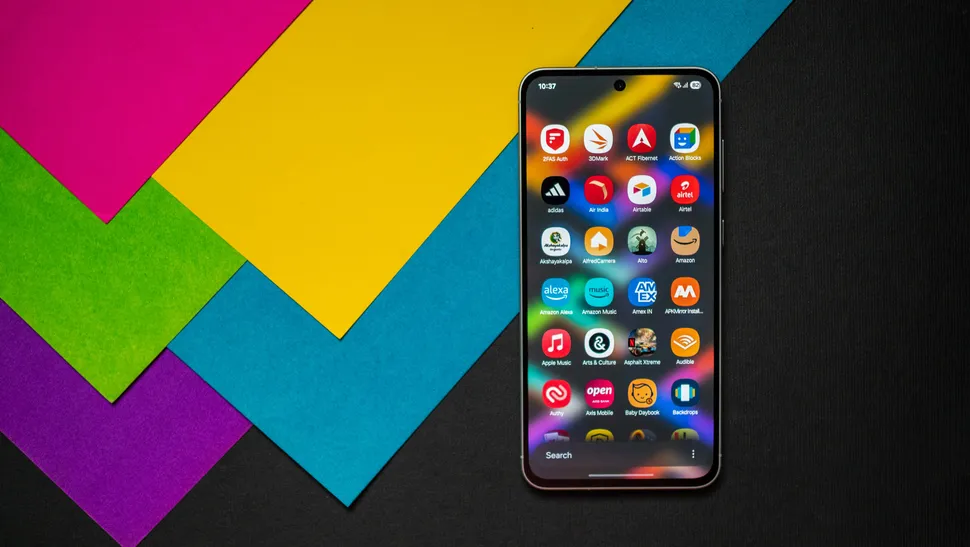
The first thing many users notice after turning on a new Android phone is that it often comes with pre-installed apps they didn’t ask for. These can include promotional games, duplicate tools, or manufacturer-specific services you may never use.
Start by going through your app drawer and home screens. Uninstall anything unnecessary or disable apps that cannot be removed. This immediately frees up storage, reduces background activity, and makes your phone feel cleaner and faster.
If you’re unsure about an app, check its permissions and background usage before deciding whether to keep it.
2. Organize and customize Quick Settings
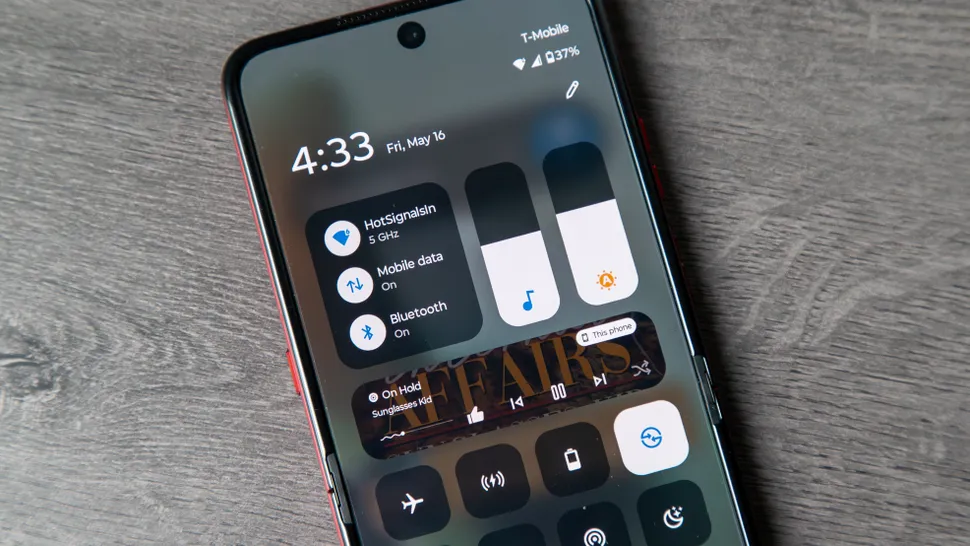
Quick Settings is one of Android’s most powerful but underused features. It’s the panel you see when you swipe down from the top of your screen, giving you fast access to tools like Wi-Fi, Bluetooth, flashlight, airplane mode, and more.
By default, this panel is rarely optimized for your personal usage. Take a moment to edit it:
- Add toggles you use frequently (like hotspot, dark mode, or battery saver)
- Remove ones you never touch
- Rearrange icons so your most-used controls are at the top
Most Android devices let you do this by tapping an edit or pencil icon inside the Quick Settings panel. Once customized, this alone can save you hours over time.
3. Choose your navigation style (gestures vs buttons)
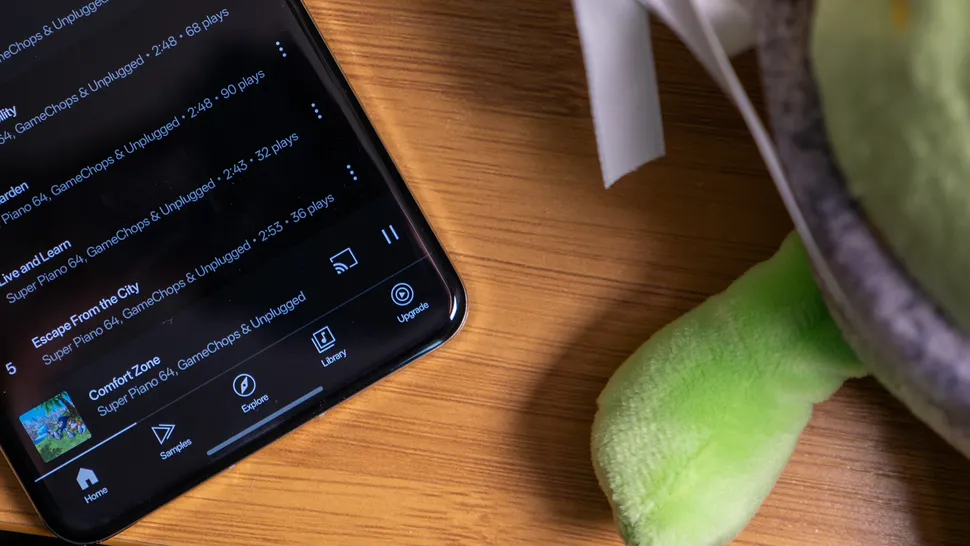
Android gives you two main ways to navigate your phone:
Gesture navigation allows you to swipe from edges and the bottom of the screen to go back, return home, or switch apps. It feels modern and gives you more usable screen space.
Button navigation keeps the traditional back, home, and recent apps buttons at the bottom of the screen. It’s more familiar for long-time Android users and can feel easier to control at first.
You can switch between these options in your system settings under display or navigation settings. Try both for a day or two and stick with whichever feels more natural for your habits.
4. Consider using a custom launcher
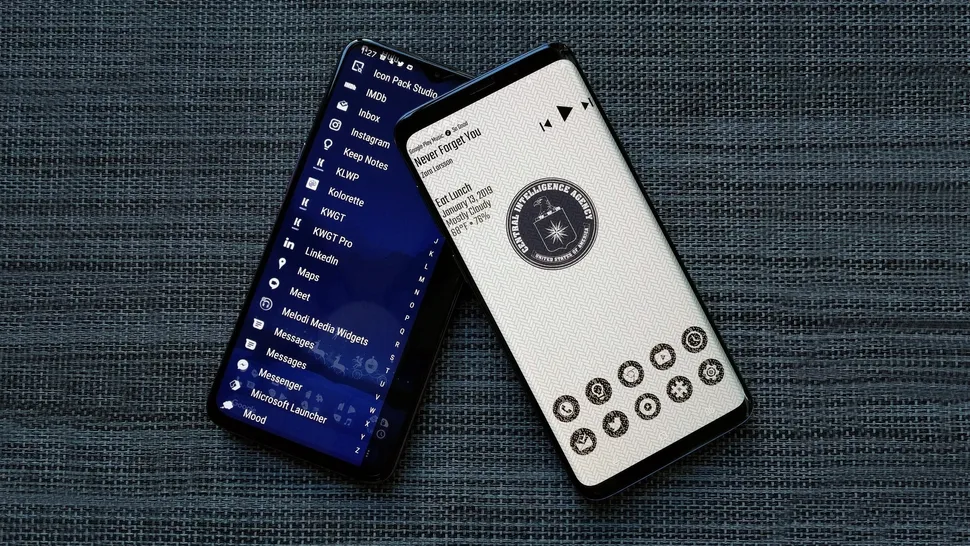
One of Android’s biggest advantages over other mobile systems is the ability to completely change the home screen experience.
A launcher controls how your home screen looks, how apps are arranged, and how you interact with the system interface. While most phones come with a default launcher from the manufacturer, you can replace it with alternatives from the Play Store.
Custom launchers allow you to:
- Redesign your home screen layout
- Add advanced gesture controls
- Hide unused apps
- Improve app organization and search speed
Even if you prefer simplicity, switching launchers can significantly improve usability depending on your workflow.
5. Set up Digital Wellbeing tools
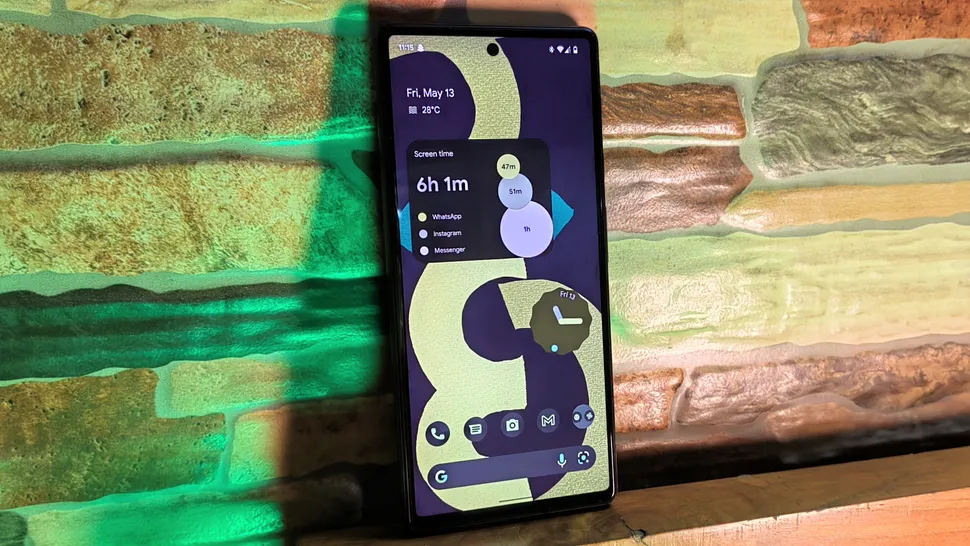
Smartphones are powerful tools, but they can also become distractions if not managed properly. Android includes a built-in feature suite called Digital Wellbeing to help you maintain control over your screen time.
With it, you can:
- Track how much time you spend on each app
- Set daily limits for specific apps
- Use Focus Mode to pause distracting apps temporarily
- Schedule “Do Not Disturb” periods
- Receive reminders when you’ve been using your phone too long
It’s worth setting this up early before habits form, especially if you want better focus or reduced screen dependency.
6. Configure Always-On Display settings
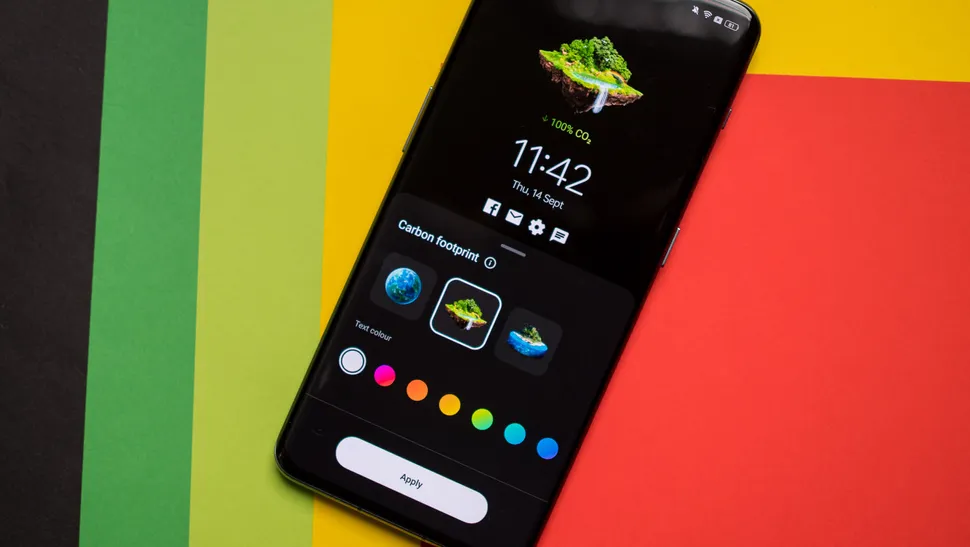
Many modern Android phones include an Always-On Display (AOD) feature, which shows essential information on the screen even when the phone is locked.
Depending on your device, you may be able to:
- Show or hide notifications
- Display clock styles or custom themes
- Schedule when AOD is active
- Turn it off completely to save battery
While convenient, Always-On Display can slightly impact battery life, so it’s worth balancing convenience with power efficiency based on your usage.
7. Set up security features properly
Security is one of the most important parts of phone setup, yet many users rush through it.
Make sure to configure:
- A strong PIN, password, or pattern
- Fingerprint unlock (if available)
- Face recognition (if supported)
- Backup unlock methods
Also check whether your device supports features like Find My Device, which helps locate or remotely lock your phone if it’s lost or stolen. Enabling full security early protects your data from day one.
8. Adjust notification preferences
Out of the box, many apps are overly aggressive with notifications. If left unchecked, this can quickly become overwhelming.
Go through your notification settings and:
- Disable alerts for unimportant apps
- Prioritize messages, calls, and essential tools
- Silence promotional or social media spam
- Use notification channels (if available) to fine-tune alerts per app
A well-controlled notification system dramatically reduces distraction and helps you stay focused.
9. Set up cloud backup and synchronization
Modern Android phones rely heavily on cloud services for backup and syncing. Setting this up early ensures your data is protected and transferable.
Typically, you should enable:
- Photo and video backup (Google Photos or manufacturer cloud)
- Contact syncing
- App data backup
- Device settings backup
This means if you ever lose or replace your phone, your data can be restored quickly without starting from scratch.
10. Personalize your home screen and widgets
Finally, make your phone feel like yours. Android is designed for customization, and your home screen is the best place to start.
You can:
- Add widgets for weather, calendar, or tasks
- Rearrange apps by usage frequency
- Create folders for better organization
- Apply wallpapers and themes that suit your style
A well-designed home screen reduces friction in daily use and makes your phone more efficient and enjoyable.
Final thoughts
A new Android phone is not just a device—it’s a system you can fully adapt to your lifestyle. Taking the time to configure it properly at the beginning pays off in smoother performance, better focus, and a more personal experience.
Instead of accepting default settings, shaping your phone early gives you long-term control over how it behaves, looks, and supports your daily routine.