
In moments of sudden danger or medical distress, your smartphone can become one of the most important tools you have. Modern Android devices are equipped with powerful Emergency SOS features designed to help you quickly contact emergency services, alert trusted people, and share critical information—even if you’re unable to unlock your phone or act normally.
This guide walks you through everything you need to know about Android Emergency SOS: what it is, how it works, how to set it up properly, and how to use it effectively when it matters most.
What Is the Emergency SOS Feature?
Emergency SOS is a built-in safety system on Android devices that allows you to rapidly contact emergency services or trusted contacts during urgent situations. Instead of unlocking your phone, navigating apps, and dialing numbers manually, SOS features let you trigger help in seconds using simple button combinations.
This can be life-saving in situations where:
- You are injured or physically unable to use your phone normally
- You feel threatened or unsafe
- You are panicking and need immediate assistance
- Time is critical and every second counts
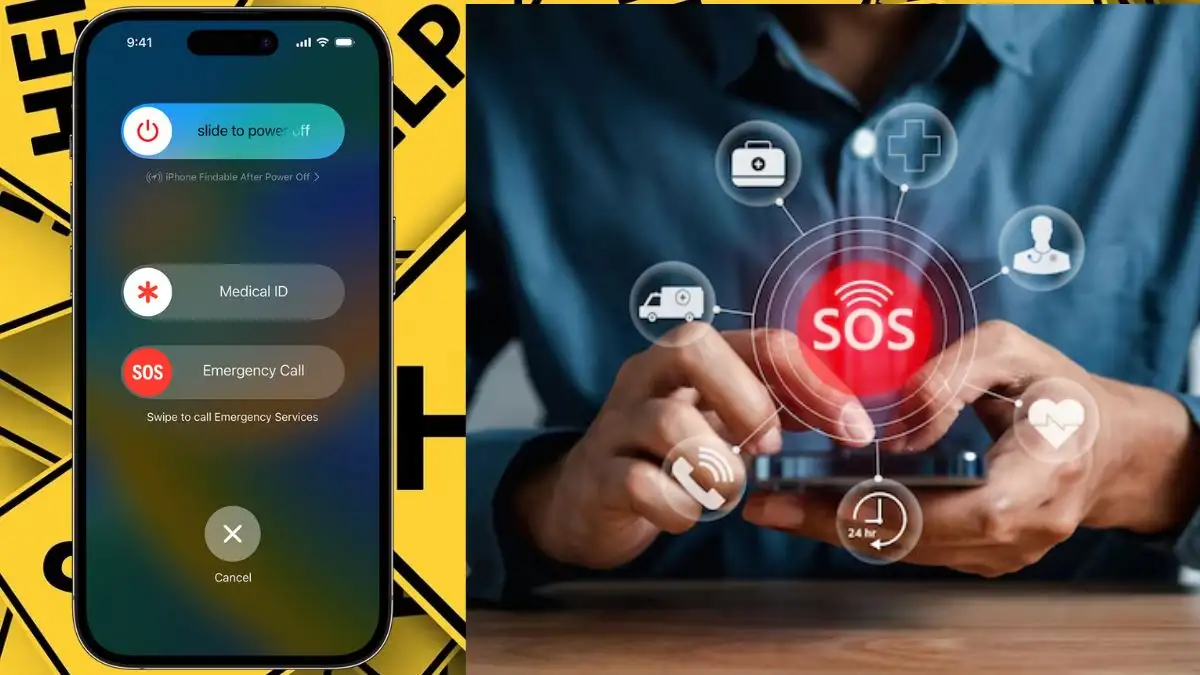
Once activated, the SOS feature can automatically perform several actions, such as:
- Calling local emergency services (e.g., 112 in Europe)
- Sending alerts to your emergency contacts
- Sharing your real-time location
- Displaying medical information for first responders
What Information Can Be Shared?
One of the most powerful aspects of Emergency SOS is the ability to provide essential medical and personal details without requiring phone access.
You can configure your device to display or send:
- Allergies
- Blood type
- Pre-existing medical conditions
- Medications
- Emergency contact details
This information can be accessed directly from the lock screen, which is especially useful for paramedics or first responders who need immediate context.
Key Emergency SOS Features on Android
Depending on your device brand and Android version, available features may include:
- Quick emergency calling with button shortcuts
- Automatic SMS alerts to selected contacts
- Live location sharing in real time
- Medical ID display on lock screen
- Emergency alarms or loud sounds to attract attention
- Photo/video capture during emergencies
- Crash detection (on supported devices)
These tools work together to increase your chances of getting help quickly and efficiently.
How to Set Up Emergency SOS on Android
The setup process varies slightly depending on your phone manufacturer, but the core steps are similar across devices.
Step 1: Open Settings
Go to your phone’s Settings menu.
Step 2: Find the SOS Section
Look for one of the following options:
- Safety & emergency
- Emergency SOS
- Security & emergency
- Personal Safety (common on Google Pixel devices)
If you don’t see these, use the search bar in Settings and type “Emergency” or “SOS”.
Device-Specific Notes
- Samsung: Typically found under “Safety and emergency,” with options for SOS messages and power button shortcuts
- Google Pixel: Uses the Personal Safety app, offering SOS, location sharing, and crash detection
- Xiaomi / OnePlus / others: Usually located under “Security,” “Privacy,” or “Additional settings,” with slightly different naming
How to Activate Emergency SOS
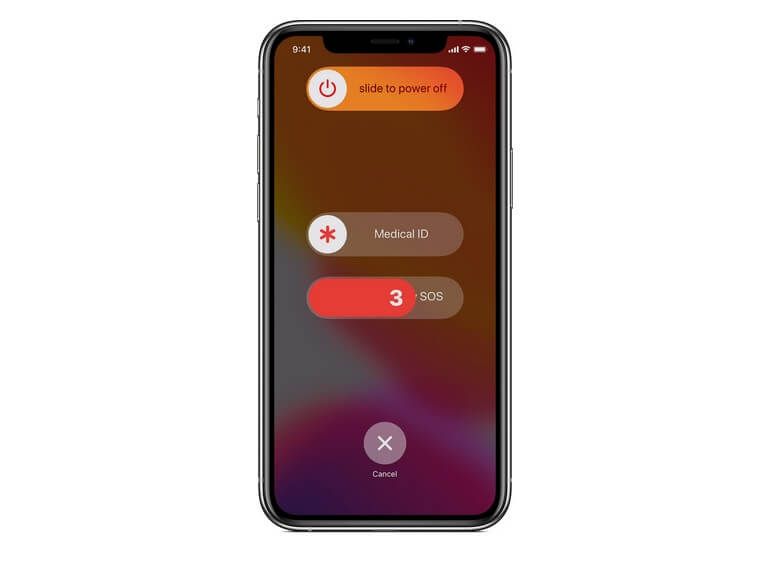
Most Android phones allow you to trigger SOS using hardware buttons:
- Press the power button 5 times quickly, or
- Press and hold power + volume buttons together
This will usually start a countdown before contacting emergency services or sending alerts. Some phones allow you to cancel during this countdown to prevent accidental calls.
Adding Emergency Contacts
Emergency contacts are the people who will be notified if you trigger SOS.
To set them up:
- Go to Safety & emergency in Settings
- Select Emergency contacts
- Add trusted individuals (friends, family, coworkers)
It’s recommended to add at least 2–3 contacts to ensure someone is reachable.
Enabling Location Sharing
Location sharing is critical in emergencies, especially if you’re unable to communicate clearly.
To enable it:
- Open the Emergency & safety menu
- Select Share information with emergency contacts
- Turn on location sharing
- Ensure GPS/location permissions are enabled
Some phones also allow:
- Continuous location updates
- Battery status sharing
- Time limits for sharing
Testing the SOS Feature Safely
You should always test your setup—but do it carefully.
- Trigger the SOS function and cancel it during the countdown
- Confirm whether messages are sent to contacts
- Inform your contacts beforehand to avoid confusion
Testing ensures everything works properly without accidentally contacting emergency services.
Important Tips for Using Emergency SOS
- Avoid accidental triggers by adjusting sensitivity or disabling shortcuts you don’t need
- SOS features rely on mobile signal, so coverage matters
- Location sharing may require mobile data or Wi-Fi
- In some cases, emergency calls can still go through via any available network
Always review your phone’s manual if something isn’t clear—each manufacturer implements SOS slightly differently.
Using Google’s Personal Safety App
For additional protection, Android users can install the Personal Safety app from Google (or use it if preinstalled).
This app includes:
- Emergency SOS activation
- Real-time location sharing
- Safety check timers (useful when walking alone at night)
- Emergency recording features
- Car crash detection (on supported devices)
The safety timer is especially useful—it allows you to set a check-in period. If you don’t respond in time, the app automatically alerts your emergency contacts.
When SOS Features May Not Work
Be aware of limitations:
- SOS messaging may not work in Airplane mode
- Battery Saver mode can restrict background features
- Poor signal may delay alerts or location updates
Because of this, it’s smart to keep your phone charged and location services enabled when traveling or going out alone.
Final Thoughts
Emergency SOS features on Android are simple to set up but incredibly powerful when needed. In critical situations, they can reduce response time, provide life-saving information, and ensure that someone knows where you are.
Take a few minutes to configure these settings properly—it’s one of those small actions that can make a huge difference when things go wrong.
Your phone isn’t just a communication device—it’s a personal safety tool. Use it wisely.