
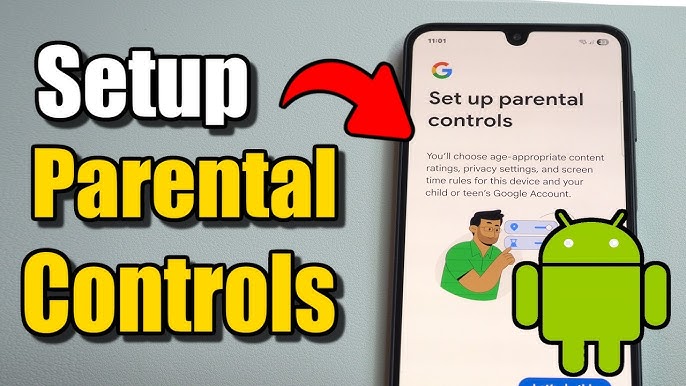
As smartphones and tablets become an essential part of everyday life, children are gaining access to digital content earlier than ever before. While the internet offers education, entertainment, and creativity, it also exposes young users to risks that parents need to manage carefully.
Android devices provide several built-in tools that help parents control what children can see, download, and do online. These tools are flexible, but they work best when set up correctly and combined with ongoing supervision.
This guide explains the main methods for setting up parental controls on Android, including Google Play settings and the Google Family Link app.
Why Parental Controls Matter on Android
Children today use Android devices for:
- Gaming and entertainment
- Watching videos and streaming content
- Social media communication
- Schoolwork and online learning
Without restrictions, they may accidentally or intentionally access:
- Inappropriate apps or content
- Unapproved purchases
- Unsafe websites
- Excessive screen time
Parental controls help create a safer environment by giving parents visibility and control without completely removing access to technology.

Method 1: Parental Controls in Google Play Store
The Google Play Store includes built-in parental control settings that let you restrict what apps, games, movies, and other content can be downloaded.
What This Method Does
With Google Play parental controls, you can:
- Restrict app and game downloads by age rating
- Limit movies, TV shows, and music content
- Prevent changes without a PIN
- Control content per user profile (on shared devices)
This method is useful for basic protection, especially on a single device.
How to Set Up Google Play Parental Controls
Follow these steps:
- Open the Google Play Store app
- Tap your profile icon in the top right corner
- Go to Settings
- Select Family
- Tap Parental Controls
- Switch Parental Controls ON
- Create a PIN code (this is essential for security)
Once activated, the system will ask you to choose restrictions for different types of content.
Setting Content Restrictions
After enabling parental controls, you can adjust categories such as:
- Apps & Games (based on age ratings like PEGI)
- Movies and TV content
- Music with explicit content filtering
These ratings help ensure your child only sees age-appropriate material.
⚠️ Important limitation:
Some content inside apps (like user-generated content or web links) is not fully controlled by Google Play restrictions.
Method 2: Google Family Link (Recommended for Full Control)
For more advanced parental supervision, Google Family Link is the most powerful tool available on Android.
It allows parents to manage a child’s entire Google account—not just the device.
What Google Family Link Can Do
Once set up, Family Link lets you:
- Set daily screen time limits
- Define bedtime or “device off” hours
- Approve or block app downloads
- Monitor app activity
- Manage Google search filters (SafeSearch)
- Control YouTube filtering settings
- Track device location
- Lock the device remotely
This makes it especially useful for families with multiple children or multiple devices.
How to Set Up Google Family Link
Step 1: Install the App
Download Google Family Link from the Google Play Store on the parent’s device.
Step 2: Create or Link Accounts
- Add your child’s Google account
- Or create a new child account if needed
- Join a Family Group under your Google account
Step 3: Connect the Child’s Device
Follow on-screen instructions to link the child’s Android device.
Managing Controls in Family Link
Once everything is connected:
- Open the Family Link app
- Select your child’s profile
- Tap Manage Settings
- Choose Controls on Google Play or other categories
- Adjust restrictions as needed
From here, you can fine-tune nearly every aspect of the device.
App Approval System
One of the most useful features is download approval.
Whenever your child tries to install a new app:
- You receive a notification
- You can approve or deny it instantly
- Nothing installs without your permission
This prevents unwanted apps from being added without supervision.
Important Things Parents Should Know
1. Previously Installed Apps
Apps installed before enabling parental controls may not automatically be restricted. In some cases, they may need to be reinstalled or manually reviewed.
2. Settings Depend on the Country
Some features vary depending on your region. Certain controls may not be available in all countries or may function differently while traveling.
3. Device Manufacturer Differences
Some Android brands (such as Samsung, Xiaomi, or OnePlus) include their own parental control systems. These may work alongside or instead of Google tools.
It’s important to check your device’s specific settings menu for additional features.
4. No System Is Perfect
Even the best parental controls have limitations:
- They cannot fully filter all internet content
- VPNs or alternative browsers may bypass restrictions
- Older children may try to disable controls if they learn the PIN
That’s why supervision and communication are still essential.
Best Practices for Parents
Parental controls work best when combined with healthy digital habits:
- Set clear rules about screen time
- Talk openly about online risks
- Explain why restrictions exist
- Review app usage regularly
- Encourage children to report anything suspicious
The goal is not just restriction—it’s education and safety awareness.
Final Thoughts
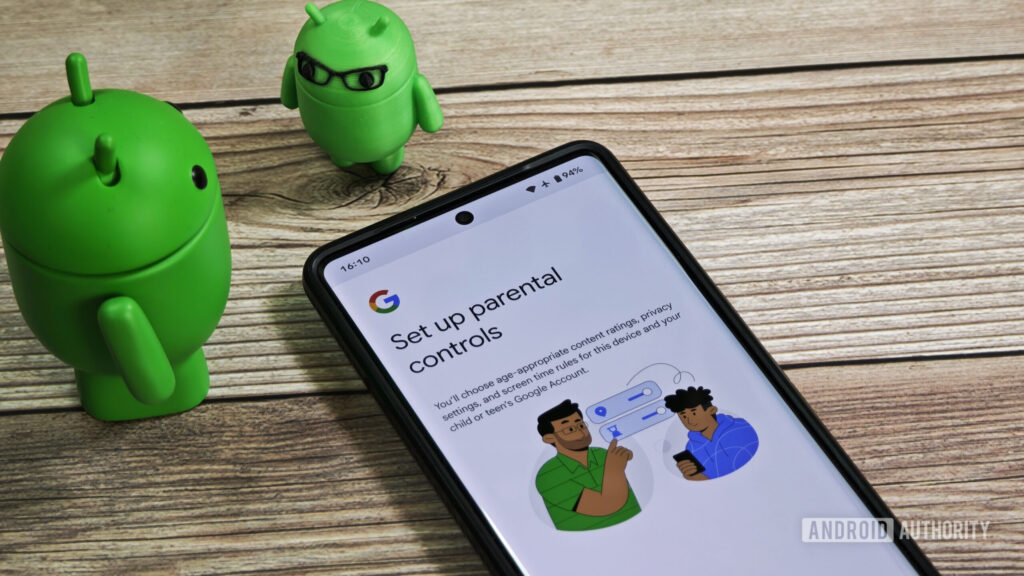
Setting up parental controls on an Android device is one of the most effective ways to create a safer digital environment for children. Tools like Google Play restrictions and Family Link give parents real control over what their children access, how long they use their devices, and what they can download.
However, technology alone is not enough. The most powerful protection comes from combining digital tools with trust, communication, and ongoing guidance.
A well-protected child is not just restricted—they are informed, aware, and supported in navigating the online world safely.